 Skip to content


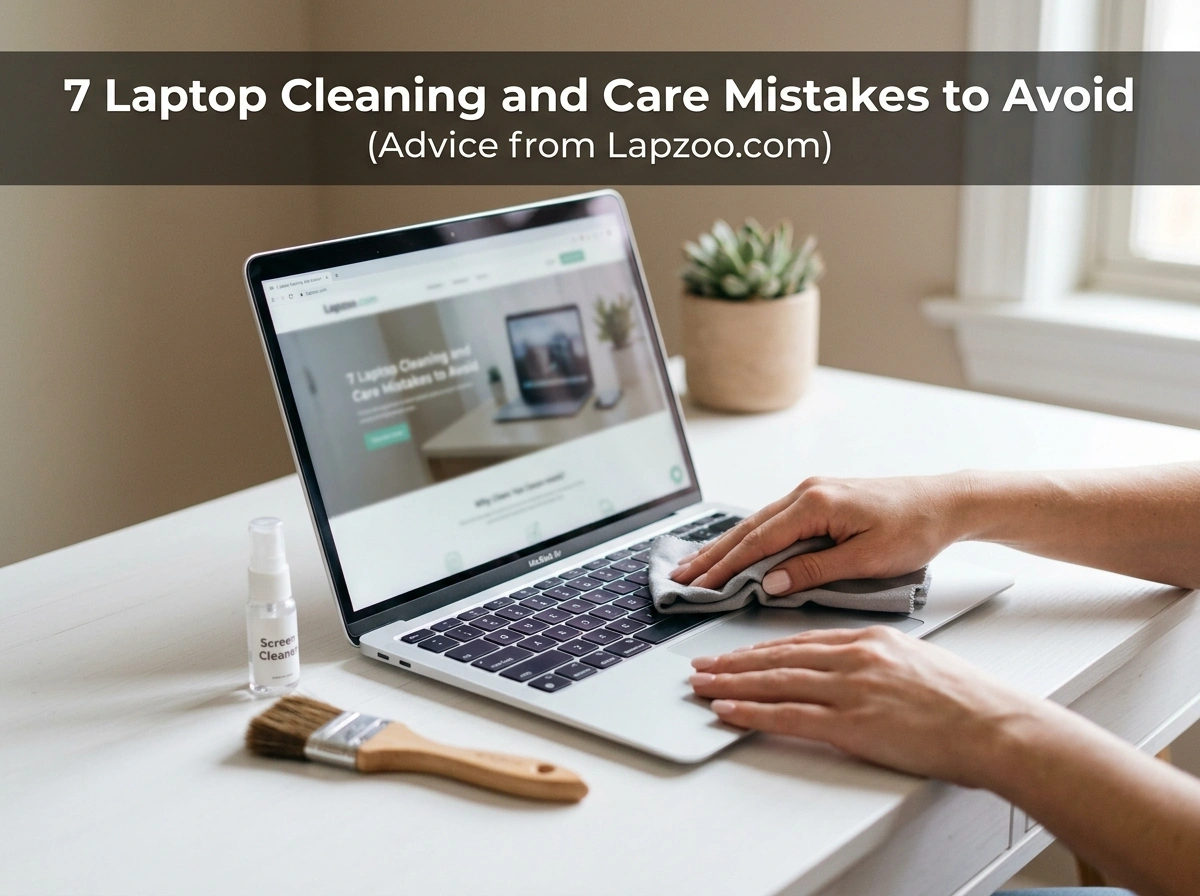
Your laptop probably goes everywhere with you. It handles work projects, late-night streaming, school assignments, and everything in between. With that kind of daily use, it picks up dust, fingerprints, crumbs, and grime fast. Yet most people clean their laptops the wrong way, and small mistakes can lead to scratched screens, sticky keys, overheating, and even permanent damage.
A little care goes a long way. The good news? Keeping your device clean and healthy is simple once you know what to skip. The experts at lapzoo.com have seen these same errors trip up users across the country, from busy professionals to college students. Below, we break down the seven most common laptop cleaning and care mistakes, plus practical tips to help you avoid each one.
1. Using Harsh Chemicals on Your Laptop
Contents
- 1 1. Using Harsh Chemicals on Your Laptop
- 2 2. Eating and Drinking Near Your Laptop
- 3 3. Cleaning the Screen the Wrong Way
- 4 4. Ignoring the Vents and Fans
- 5 5. Using Paper Towels and Rough Materials
- 6 6. Skipping a Keyboard Cover
- 7 7. Not Storing Your Laptop Properly
- 8 Final Thoughts: Small Habits, Big Payoff
It feels logical to reach for whatever cleaner is under the sink. Glass cleaner, all-purpose spray, bleach wipes, straight rubbing alcohol, or ammonia-based products seem like quick fixes. The problem is that these harsh chemicals can eat away at protective coatings, dull your screen’s anti-glare layer, and fade plastic finishes over time.
What to do instead: Stick with a solution of distilled water mixed with a small amount of isopropyl alcohol (around 70% concentration is ideal for surfaces, but keep it light on the screen). Better yet, use cleaning products designed specifically for electronics. Always apply the liquid to a cloth, never directly onto the device, so moisture doesn’t seep into seams or ports.
2. Eating and Drinking Near Your Laptop
We’ve all done it. Lunch at the desk, coffee during a video call, a snack while binge-watching a show. But food crumbs slip between keys, and a single spilled drink can short-circuit your entire machine. Liquid damage is one of the most common and most expensive laptop repairs out there.
What to do instead: Keep food and drinks at arm’s length, ideally on a separate surface. If you must keep a beverage close, use a cup with a secure lid. Crumbs are easier to prevent than to dig out later, so make it a habit to wipe down your hands and your eating space before you get back to typing.
3. Cleaning the Screen the Wrong Way
Laptop screens are delicate. Pressing too hard, spraying liquid directly onto the display, or scrubbing with rough materials can cause scratches, dead pixels, or streaks that never fully disappear. Many people also use the bottom of their shirt to wipe smudges, which can drag dust particles across the glass and leave fine scratches.
What to do instead: Power off your laptop and let it cool first. Use a soft microfiber cloth slightly dampened with distilled water or a screen-safe cleaner. Wipe gently in one direction or small circular motions. For tough fingerprints, a barely damp cloth almost always does the trick without any extra pressure.
4. Ignoring the Vents and Fans
Out of sight, out of mind. The vents and internal fans are easy to forget because you can’t see them working. But dust builds up inside, blocking airflow and forcing your laptop to run hotter than it should. Over time, this overheating slows performance, drains your battery faster, and can damage internal components.
What to do instead: Check your vents regularly for dust buildup. Use a can of compressed air to blow out debris in short bursts, holding the can upright and keeping the fan from spinning too fast (you can gently hold it in place with a toothpick). Do this every few months, more often if you work in a dusty environment or rest your laptop on soft surfaces like beds and couches that trap heat.
5. Using Paper Towels and Rough Materials
Paper towels feel handy, but they’re surprisingly abrasive. The same goes for napkins, tissues, and rough rags. These materials can leave tiny scratches on your screen and casing, and they shed lint that gets stuck in keyboard crevices and ports. What looks like a quick clean can actually create new problems.
What to do instead: Invest in a few quality microfiber cloths. They’re soft, reusable, and lint-free, making them perfect for screens, keyboards, and exterior surfaces. Keep one in your laptop bag so you always have the right tool nearby. Wash your microfiber cloths regularly so they don’t carry dirt back onto your device.
6. Skipping a Keyboard Cover
The keyboard is one of the dirtiest parts of any laptop. It collects oils from your fingers, dust, crumbs, and bacteria. Without protection, all of that settles between and beneath the keys, where it’s tough to clean and can eventually cause keys to stick or stop responding.
What to do instead: Use a thin silicone keyboard cover. It acts as a barrier against spills, crumbs, and grime, and you can pop it off to rinse it whenever it gets dirty. A good cover is inexpensive and can extend the life of your keyboard significantly. For frequent travelers, it’s an easy way to keep things tidy on the go. You can find protective accessories built for different laptop models through trusted retailers like lapzoo.com.
7. Not Storing Your Laptop Properly
How you store your laptop matters just as much as how you clean it. Tossing it loosely into a backpack, leaving it in a hot car, or stacking heavy items on top invites cracked screens, dented casings, and battery damage. Extreme temperatures are especially harmful, since heat and cold both stress the battery and internal parts.
What to do instead: Always use a padded sleeve or a dedicated laptop compartment in your bag. Store your device in a cool, dry place away from direct sunlight and radiators. Before packing it away for travel, make sure the lid is fully closed and nothing is resting on the keyboard. If you won’t use it for a long stretch, charge the battery to around 50% to keep it healthy.
Final Thoughts: Small Habits, Big Payoff
Your laptop is an investment, and protecting it doesn’t require fancy gear or hours of work. Avoiding these seven mistakes comes down to a few simple habits: skip the harsh chemicals, keep food and drinks at a safe distance, clean your screen gently, clear out those vents, ditch the paper towels, add a keyboard cover, and store your device with care.
Build these routines into your week, and you’ll enjoy a faster, cleaner, and longer-lasting machine. A well-cared-for laptop performs better, looks better, and saves you money on repairs and early replacements. Treat it right today, and it’ll keep up with everything you throw at it tomorrow.











Leave a Reply